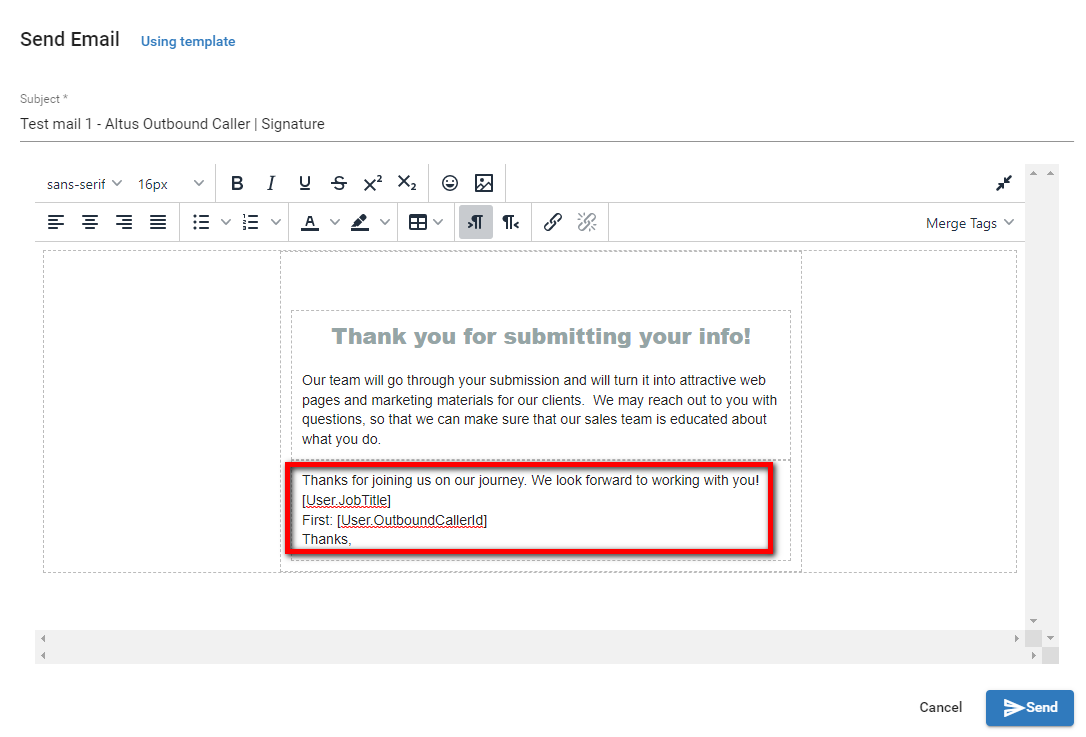
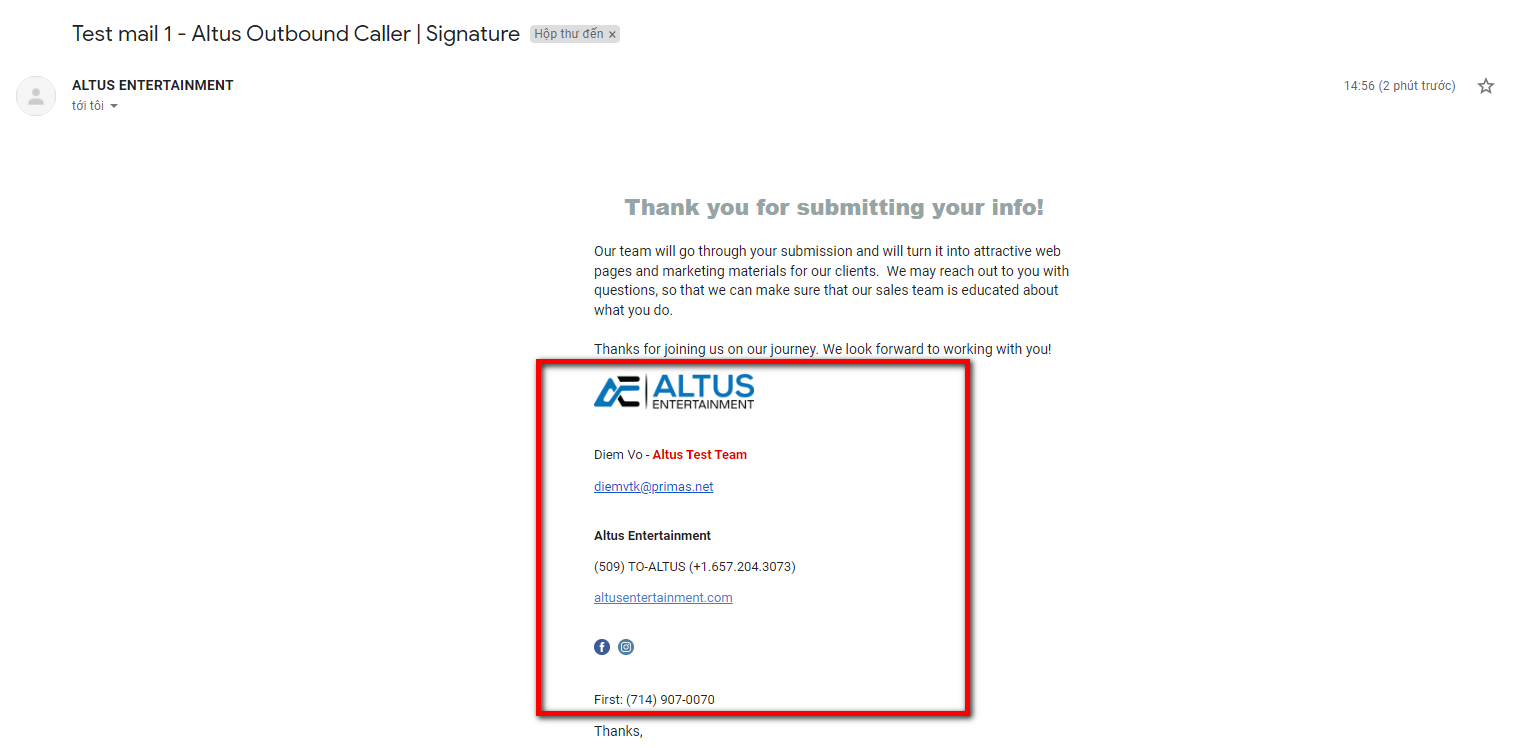
This document guides how to create individual email signatures and select merge tags.
Step-by-step guide
Login BACKOFFICE with the user role having permission for the profile/user page.
Access to https://app.altusentertainment.com/, enter login information.
Change the User’s job title for the user
Option 1: Change your job title (individual email signatures).
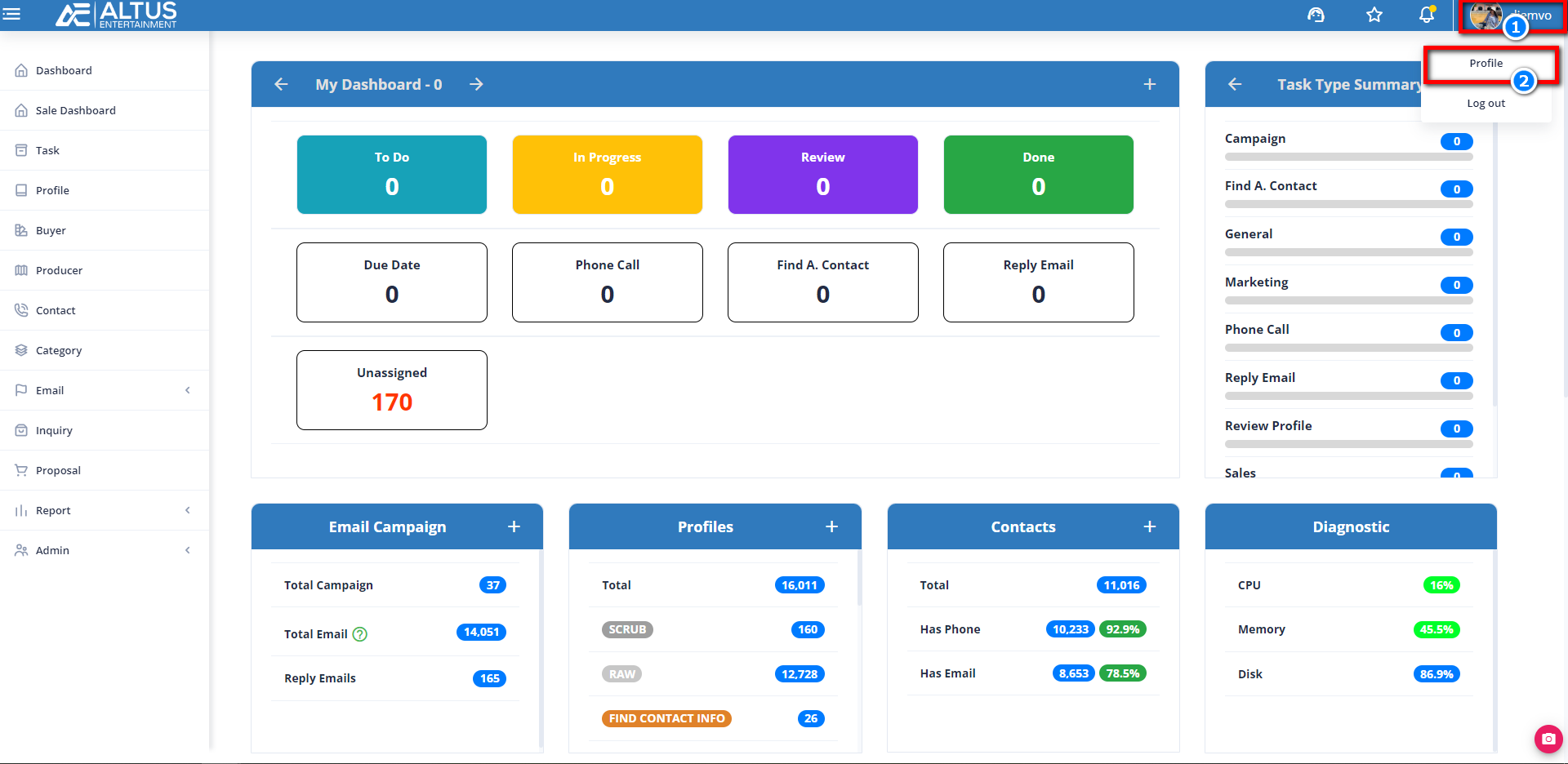
- Click the avatar in the right corner.
- Select Profile.
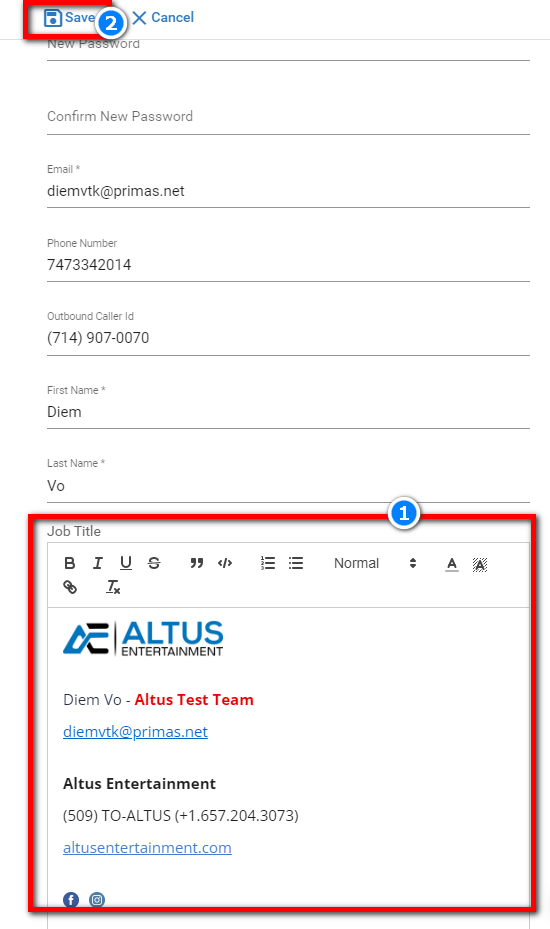
In the dialog box, enter your job title (individual email signatures) (1) and click save (2).
Option 2: If you have an admin role, use the admin role to modify the user job title.
Navigate to the User session:
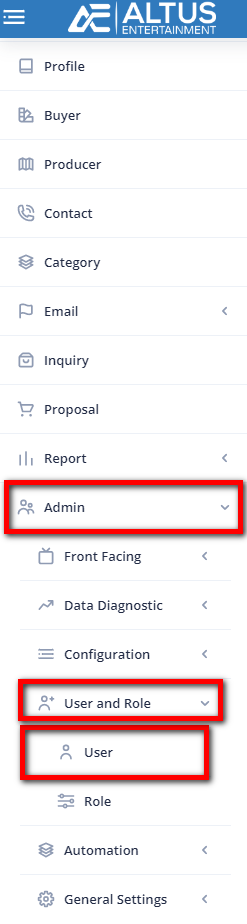
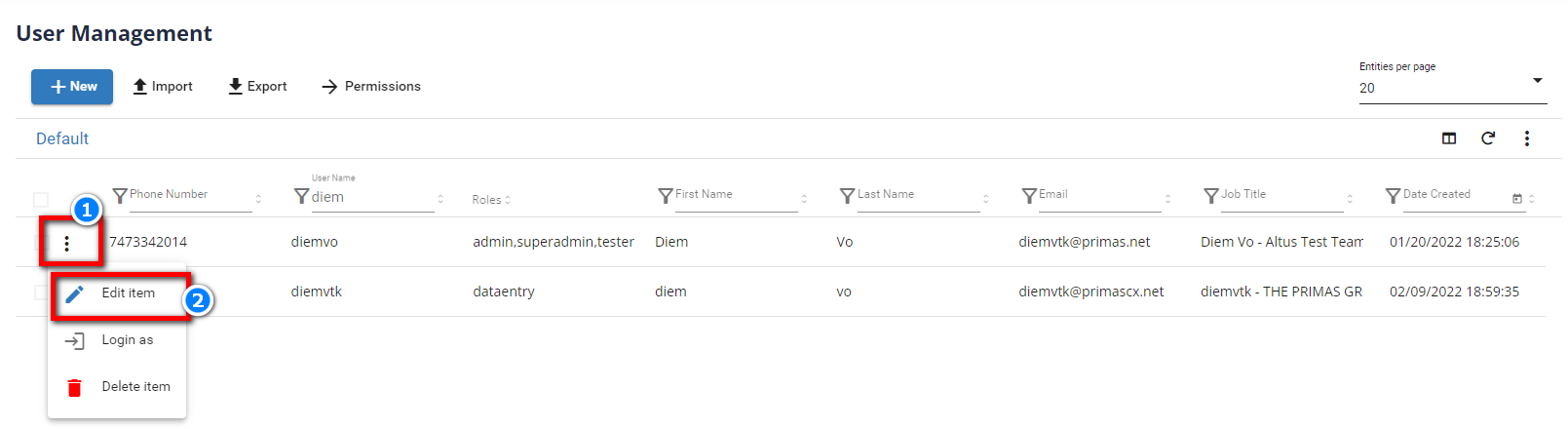
- Click
 action icon.
 - Select Edit item.
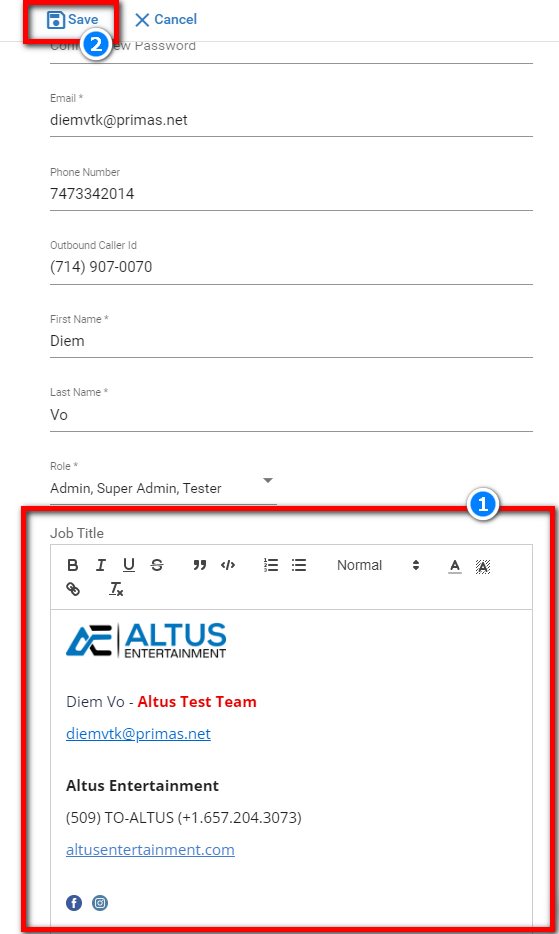
Enter the user job title (individual email signatures) into the job title field (1) and click save (2).
Add merge tag in editor email.
Click into the email text field and select merge tag.
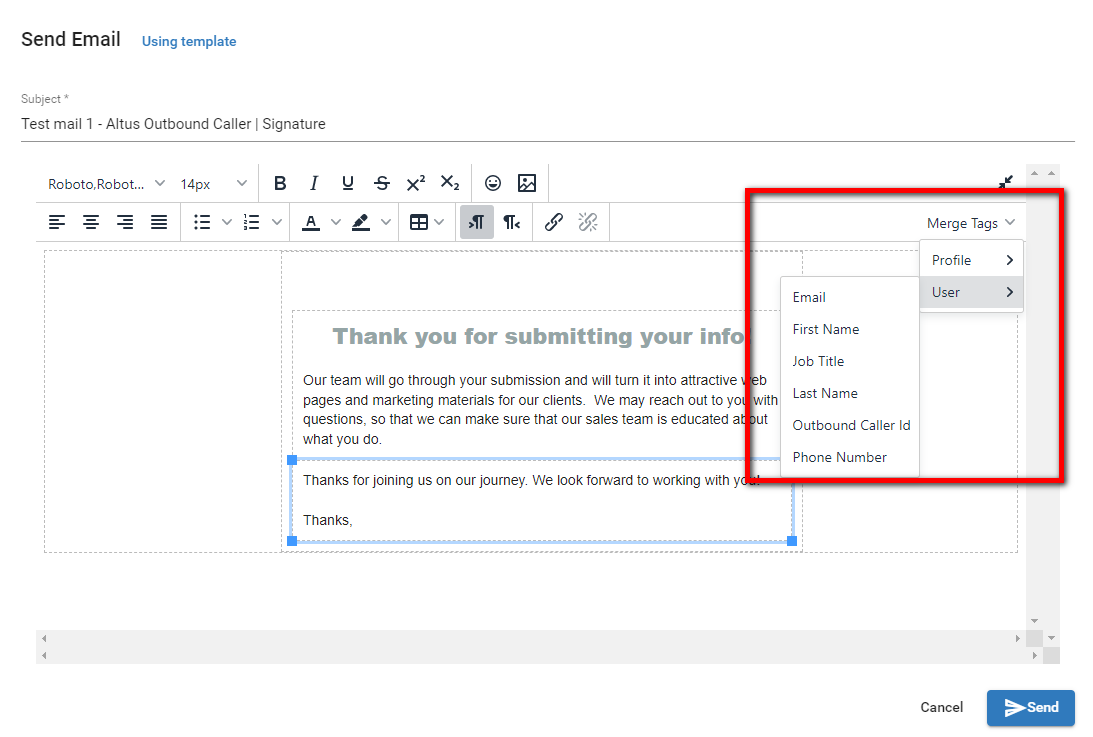
Can copy tag to the text field or enter [ to show suggestions.
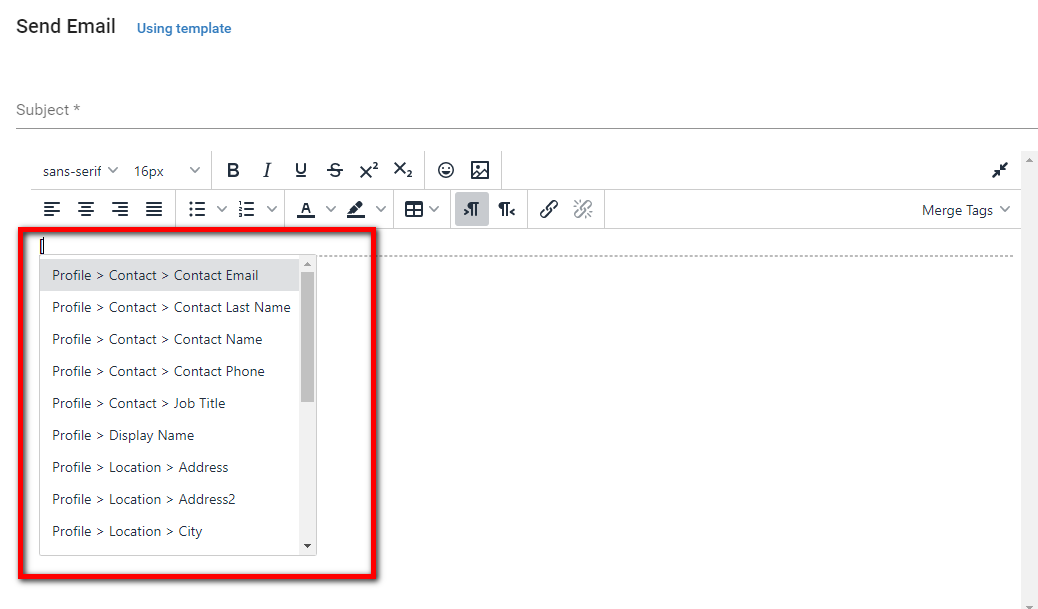
Successful select merge tag.